Color panel
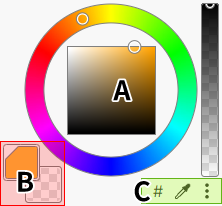
A panel for changing palette colors.
For how colors work, see Choosing colors.
Color picker
Edits the selected main color or sub color.
You can choose which picker to use from the kebab menu.
You can also edit colors with the color code or the eyedropper.
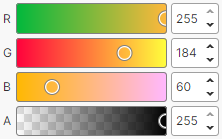
- RGB Sliders
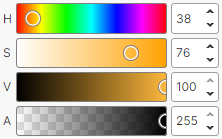
- HSV Sliders
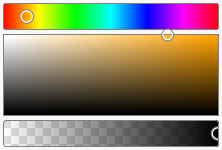
- H+SV Box
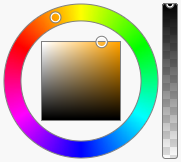
- Color Wheel
Main color and sub color

The currently selected main color and sub color.
Click either one to select the main color or the sub color.
The selected one can be edited with the color picker.
Note
The sub color is hidden by default. (How to show it)
Menu
Color code 
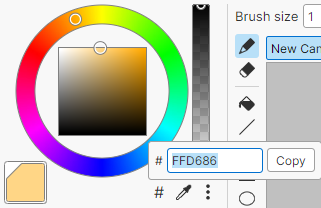
Shows and sets the color code of the color you are editing.
Eyedropper 
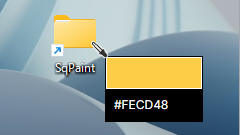
Picks a color from anywhere on the screen and applies it to the color you are editing.
- Confirm: Left-click or the Enter key
- Cancel: Right-click or the Esc key
Kebab menu 
| Item | Description |
|---|---|
| RGB Sliders | Switches the color picker to RGB sliders |
| HSV Sliders | Switches the color picker to HSV sliders |
| H+SV Box | Switches the color picker to the H+SV box |
| Color Wheel | Switches the color picker to the color wheel |
| Hide Sub Color | Hides the sub color |