Creating, opening and saving files
Creating a new canvas
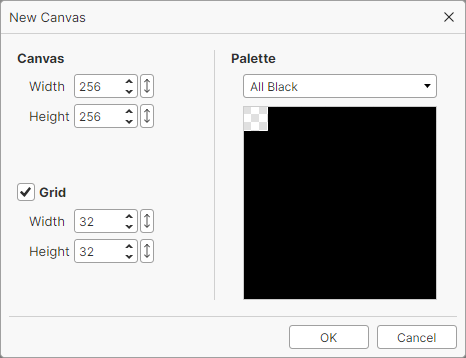
- Open the New Canvas window from
File > Newin the menu bar. - Choose the canvas size, the grid size, and a palette template, then click OK to create a new canvas.
Tip
You can also create a canvas from a previously copied image with File > New from Clipboard.
Opening and saving
SqPaint works with two kinds of files: canvases and images.
- A canvas (.spcv) can store data such as the palette, grid, layers, and animation.
- We recommend saving your work as a canvas file and exporting it as an image when it is finished.
You can open files with File > Open, or by dragging and dropping them onto the SqPaint window.
Note
Supported image formats are bmp, jpg, png, and webp. png or webp is recommended.
Note
When you open an image file, a palette is created automatically from the colors used in the image.
SqPaint can use up to 255 colors (+ the transparent color), so images with more colors are opened with a reduced number of colors.
Exporting an image
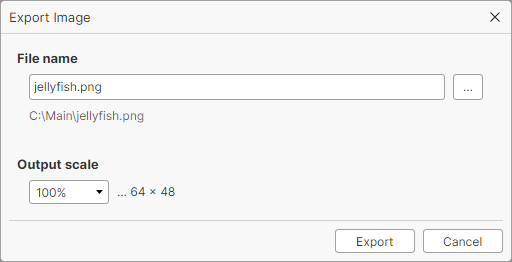
- Open the Export Image window from
File > Export Imagein the menu bar. - Choose the file name and the output scale, then click OK to export the image.
Exporting an animation
Cel animations and sprite animations can currently be exported only as an image sequence.
Exporting as an image sequence
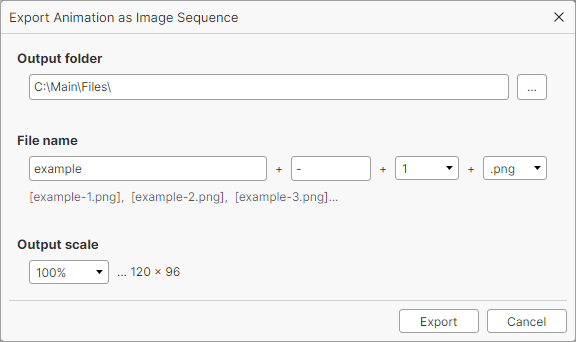
- Open the Export Animation as Image Sequence window from
File > Export Animation as Image Sequencein the menu bar. - Choose the output folder, the file name, and the output scale, then click OK to export the images.