Preview panel
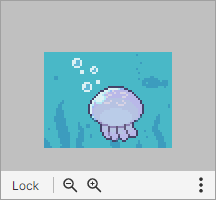
Shows the canvas you are editing from a separate view.
You can edit while zoomed in and check the whole picture in the Preview panel.
Info
This panel is hidden by default.
Select View > Preview in the menu bar to show it.
Bottom menu
Hidden normally, and appears when you hover the cursor over it.
- When Lock is off, the view scrolls automatically to follow the Canvas Edit panel.
-
When Lock is on, the view scrolls only when you drag it.
-
Change the zoom level with the zoom buttons

 or the mouse wheel.
(It does not follow the Canvas Edit panel.)
Showing sprites
When sprite animation is enabled and Show Sprite in Preview is on, the panel can show only the sprite instead of the whole canvas. (You can set this in the Sprite Animation panel.)