Layers
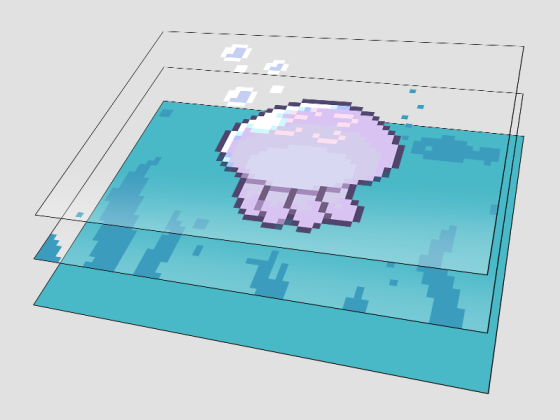
In SqPaint, you draw on layers.
A layer is like a sheet that you can stack with others to build up a picture.
You work with layers in the Layers panel.
Layer settings
A layer has the following five settings.
- Name
- Opacity
- Blend mode
- Clipping
- Lock Transparent Pixels
Name

The name shown in the Layers panel.
Change it by double-clicking the layer or from the context menu that appears when you right-click.
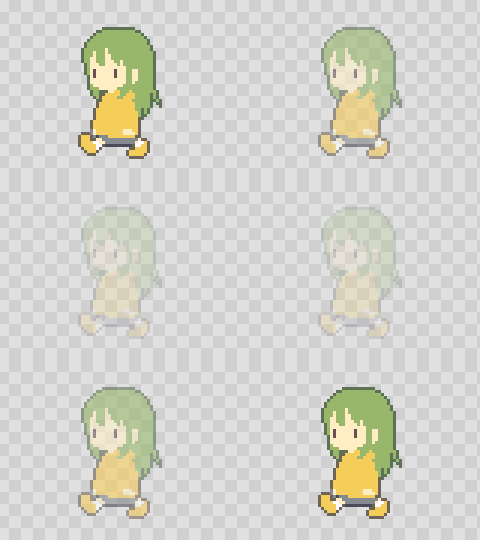
Opacity
Blend mode
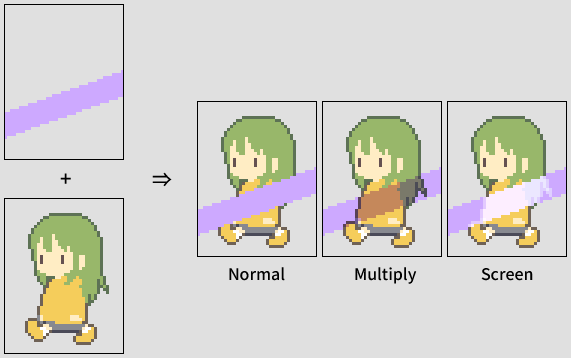
Sets how the layer is displayed when stacked on other layers. The setting of the upper layer determines the result.
There are currently three modes: Normal, Multiply, and Screen. (More to come.)
A common use is Multiply for shadows and Screen for light.
Change it in the layer settings.
Clipping
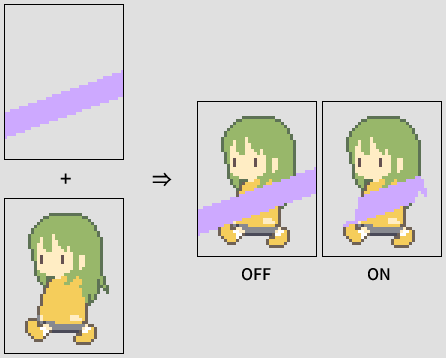
Limits the visible area of the upper layer to the drawn parts of the layer directly below it.
Change it in the layer settings.
Lock Transparent Pixels
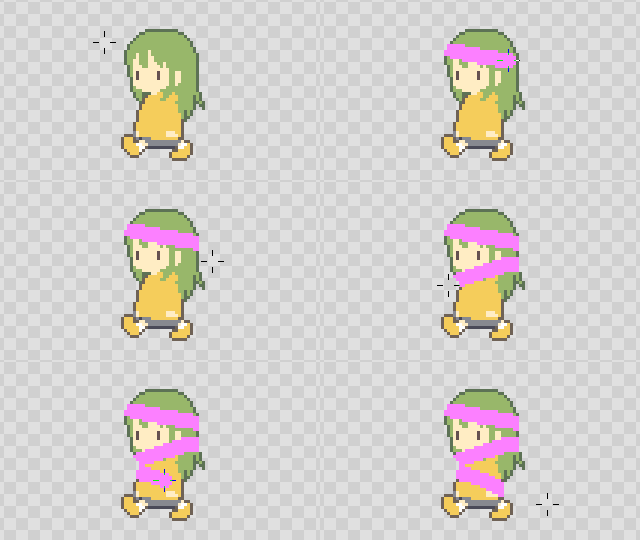
The transparent color (palette index 0) no longer changes when you paint.
Change it in the layer settings.
Folders
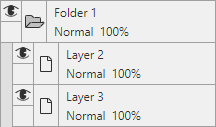
A feature for organizing multiple layers together.
Create one with  in the Layers panel, then drag and drop layers into it.
Folders also have opacity, blend mode, and clipping settings, which apply to the combined picture of the layers inside.
Reference layer
There is also a reference layer for showing a reference image behind your drawing.