Choosing colors
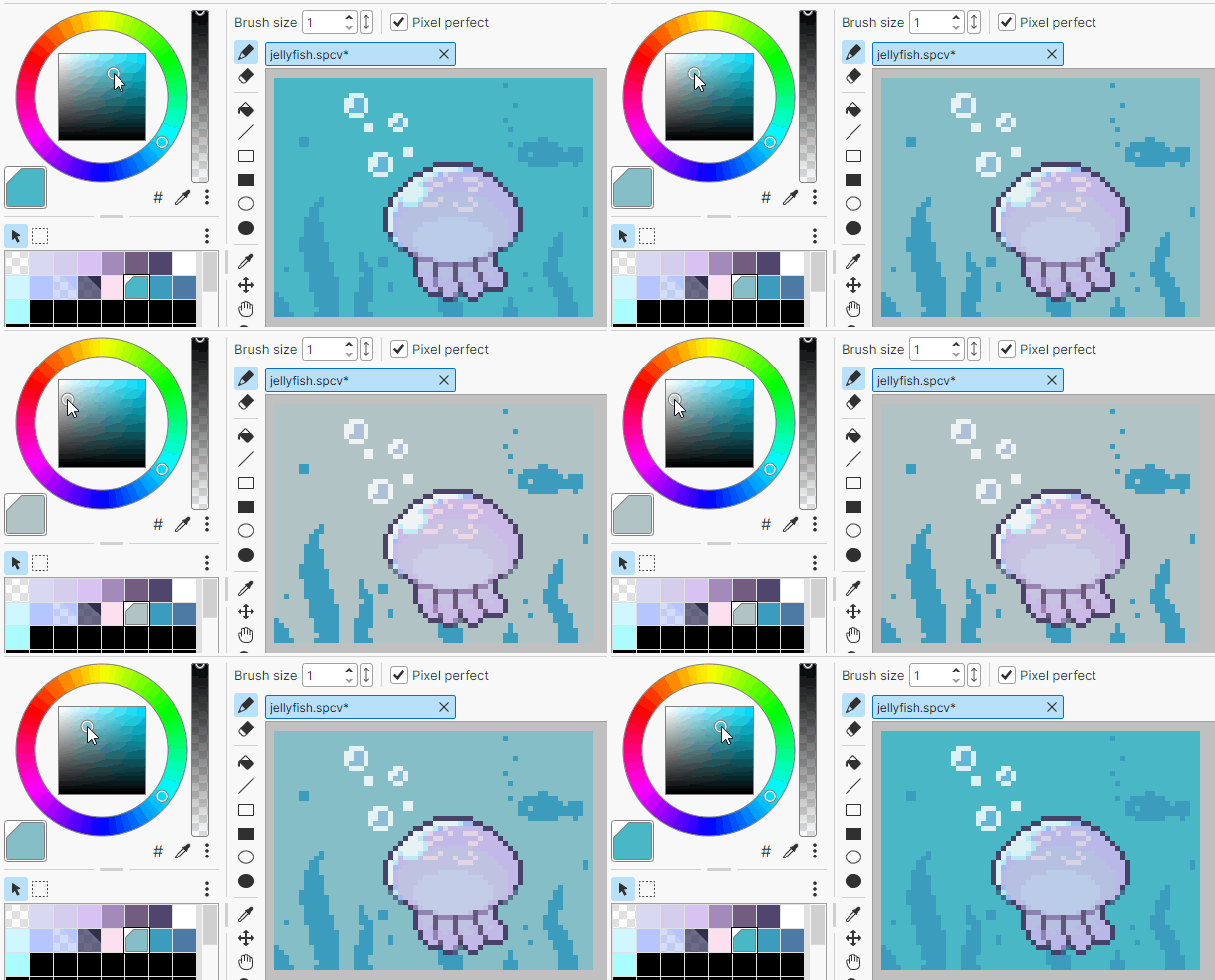
SqPaint uses indexed color.
When you change a palette color, the colors in the picture change along with it.
Note
Pixel art uses few colors by nature, and being able to adjust colors afterward is a big advantage, so SqPaint works this way.
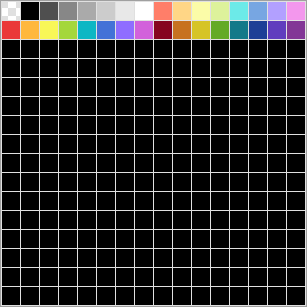
A canvas can use up to 256 colors (the transparent color + 255 colors).
The colors are numbered 0, 1, 2, 3... starting from the upper left.
The upper-left color of the palette (index 0) is always the transparent color and cannot be changed.
Selecting and editing colors
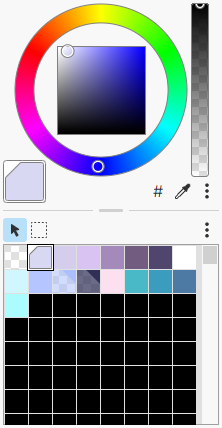
Select a color in the Palette panel (bottom of the image), and edit the selected color in the Color panel (top of the image).
Main color

The main color is the color used for drawing with the Pencil Tool and other tools.
Left-click a color in the Palette panel to select it.
It is marked with a triangle frame in the upper left.
Sub color

The sub color is a second selected color that is hidden by default. (See below for how to show it.)
Right-click a color in the Palette panel to select it.
It is marked with a triangle frame in the lower right.
How to show it
The sub color is hidden by default, but it appears if you do either of the following.
- In Editor Settings, set
Canvas (Controls) > Right-click action (Drawing tools)to Paint with sub color - Clear Hide Sub Color in the Color panel's kebab menu
Note
The sub color is used by the Paint with sub color right-click action.
You can also swap the main color and the sub color with X.
Shifting color indices
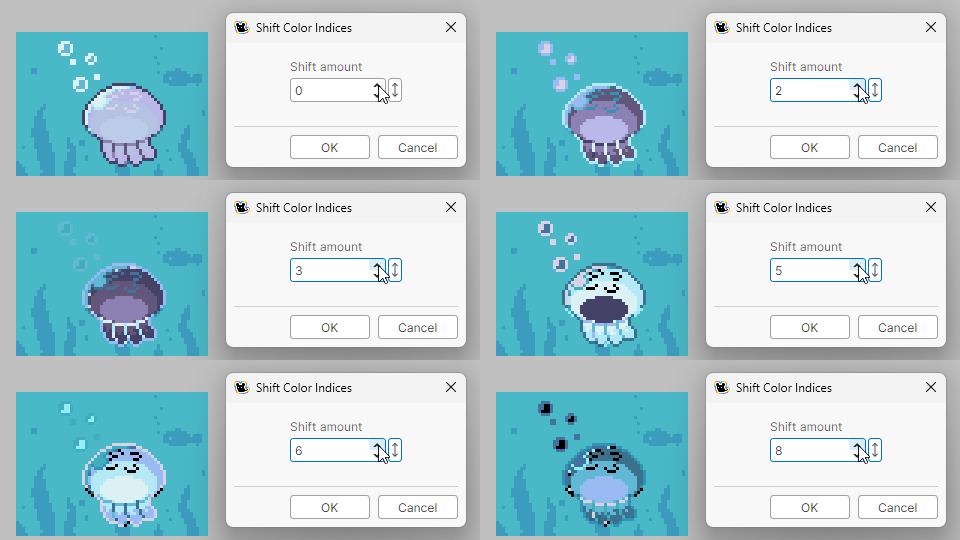
A feature that shifts the color indices of the selected layers.
Use it from Edit > Shift Color Indices in the menu bar.
- The indices shift in a loop: 1 → 2 → 3 …… 255 → 1.
- The transparent color (index 0) is not affected.
- If there is a selection, only the colors inside the selection are shifted.