Selections
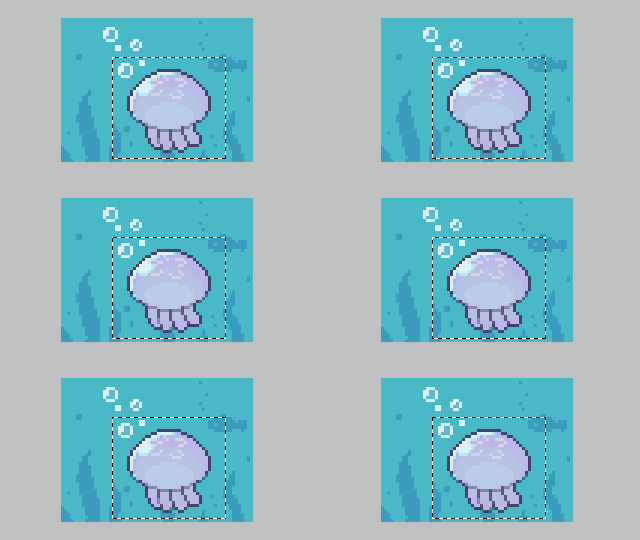
A selection is a feature for working on and editing a specific area of the canvas.
The main uses are:
- Moving or transforming part of the picture
- Copying part of the picture
- Drawing without going outside the selection (masking)
Tip
You can move, transform, and copy multiple layers at once by selecting them.
Selecting
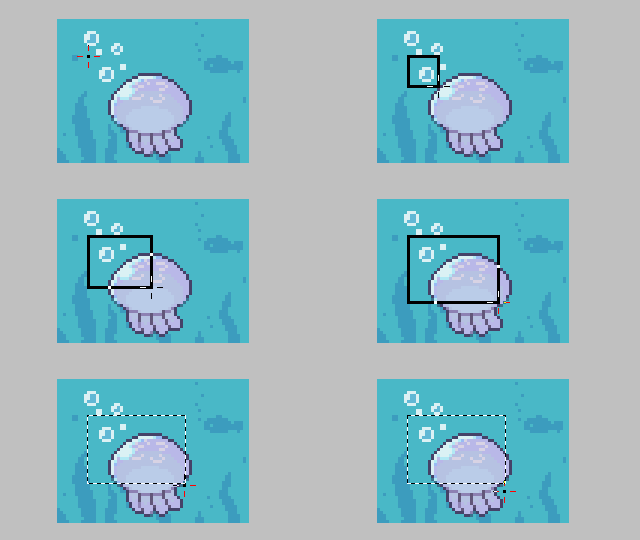
You mainly select areas with the selection tools.
Deselecting
Select > Deselectin the menu bar- Right-click outside the selection with the Rectangular Marquee Tool or the Magic Wand Tool
Moving
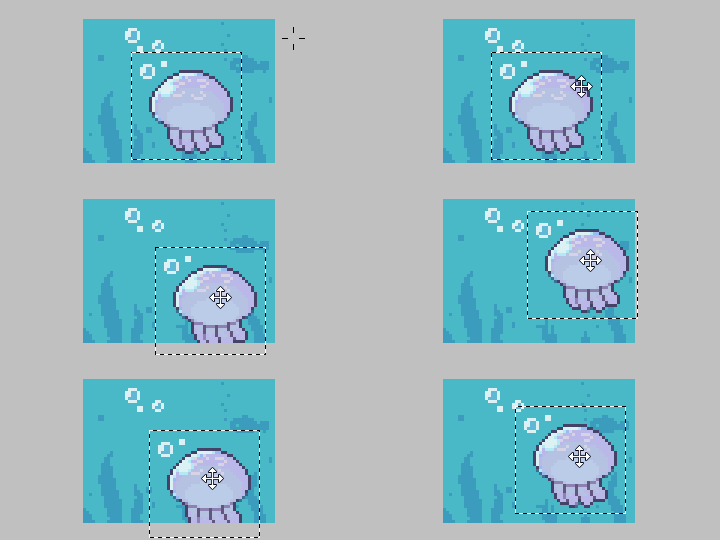
Click inside the selection and drag to move it.
Menu
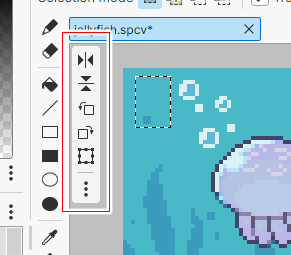
When there is a selection, the selection menu appears in the upper left of the canvas. From here you can flip, rotate, and transform the image inside the selection.
These operations apply to the selected layers.
| Item | Description |
|---|---|
 |
|
 |
|
 |
|
 |
|
 |
|
 |
|
Tip
You can also do these operations from the menu that appears when you right-click the selection, or from the menu bar.
Copy & paste
You can copy the selection with Edit > Copy in the menu bar.
You can paste the copied image with Edit > Paste, or paste it into other graphics software.
Info
Pasting normally pastes the image directly onto the current layer, but you can choose Edit > Paste as New Layer to create a new layer and paste the image there.
Also, if you copied images from multiple layers and paste right away, they are pasted onto the same layers. If you have changed the selected layers or done something similar in the meantime, they are pasted onto new layers automatically.