Palette panel
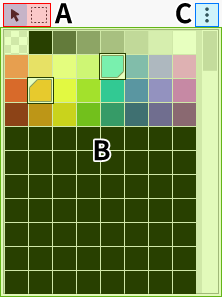
A panel for choosing the colors to draw with.
For how colors work, see Choosing colors.
Palette tools
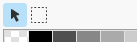
Switches how you work with the color palette.
Cursor tool 
- Left-click to select the main color, and right-click to select the sub color.
- Drag to rearrange the colors.
Note
The sub color is hidden by default. (How to show it)
Selection tool 
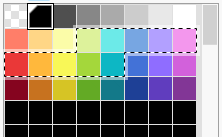
- Drag to select a range, then move or copy the colors.
- Right-click inside the range to open a menu. (See below.)
- Right-click outside the range or switch to the Cursor tool to clear the range.
- Hold Ctrl and click to add to the selection, or hold Shift and click to select a continuous range.
Context menu
- Duplicate
- Cut
- Copy
- Paste
- Delete
Color palette
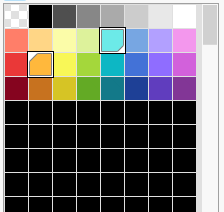
The list of colors registered to the canvas.
- Main color

- For details, see Main color.
- Sub color

- For details, see Sub color.
Kebab menu 
| Item | Description |
|---|---|
| Save Palette as Template | Saves the palette of the current canvas as a template |
| Manage Palette Templates | Opens Manage Palette Templates |
| Panel Settings | Opens Editor Settings |
Key controls
You can move the main color with W A S D.
You can change these keys in Keyboard Shortcuts.