Sprite animation
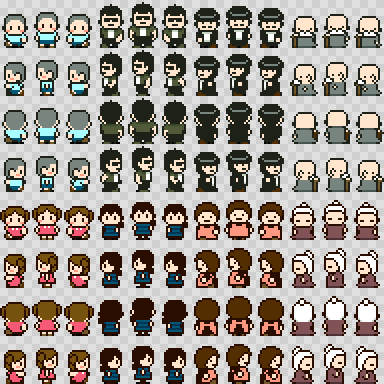
A sprite is a small image used for things like map tiles and characters in games.
An image with multiple sprites arranged in it is called an atlas.
The sprite animation feature lets you play the sprites in an atlas as an animation.
Basic workflow
- Choose
Canvas > Enable Sprite Animationin the menu bar to enable it. - Once enabled, the Sprite Animation panel appears.
- Add sprites with
 . (details)
 - Play the animation with
 .
.
Adding sprites
- Click and the button turns red. You are now in Add Sprite mode.

- Drag on the canvas to set the area of the first frame.
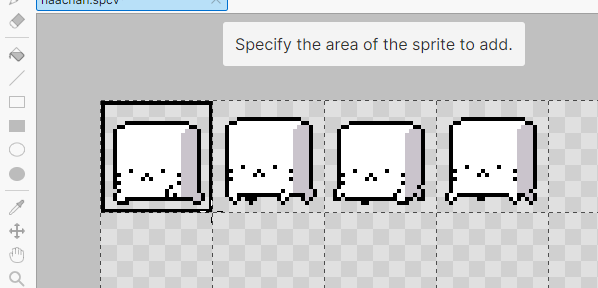
- The first sprite is added.
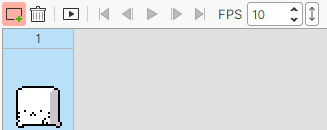
- From the second frame on, a box the same size as the first sprite is shown. Align it and click to add more sprites.
- Click again or right-click the canvas to exit Add Sprite mode.
Tip
Setting the area is easier with snap to grid.
Playing the animation
- The animation is normally played in the Canvas Edit panel, but you can show it in the Preview panel with
 .
. - With the preview, you can draw while the animation plays.
- Set the playback speed in the menu.
Exporting
Currently, animations can only be exported as an image sequence.