Grid
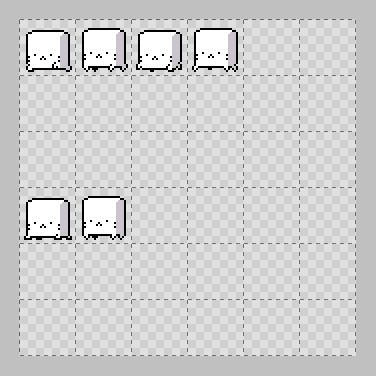
The grid is a set of guide lines shown on the canvas.
It is useful when you want to divide the image into a regular pattern of squares.
Showing / hiding the grid
Show or hide the grid with View > Grid in the menu bar.
You can also switch it with  in the toolbar.
Tip
You can change the grid color in Canvas (Display) > Grid in Editor Settings.
Changing the size
Change the grid size with Canvas > Grid Size in the menu bar.
Snap
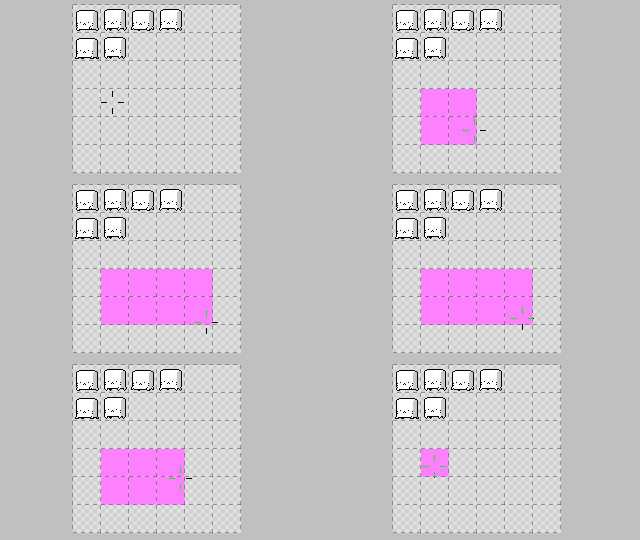
When snapping is on, areas and movement amounts automatically match the grid size
when you use tools such as the shape tools, the Move Tool, and the Rectangular Marquee Tool.
Turn snapping on or off with View > Snap to Grid in the menu bar.
You can also switch it with  in the toolbar.
Pixel grid
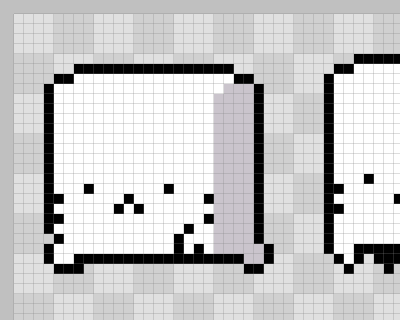
Separately from the grid above, there is also a grid that separates every pixel.
You can change this display setting in Canvas (Display) > Pixel grid in Editor Settings.