Showing reference images
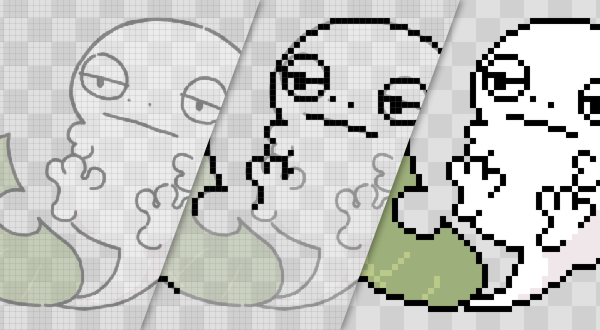
A reference image is a feature for drawing while showing a reference picture behind your drawing.
It can show images at a finer resolution than the canvas, which helps when drawing pixel art from a rough sketch or a photo.
Basic workflow
- Open a reference image with
Edit > Open Reference Imagein the menu bar.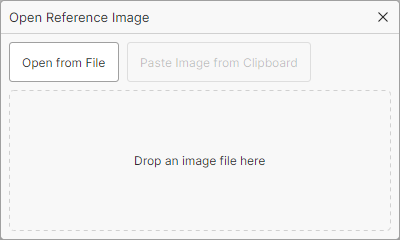
- A reference layer is added and the reference image appears on the canvas.
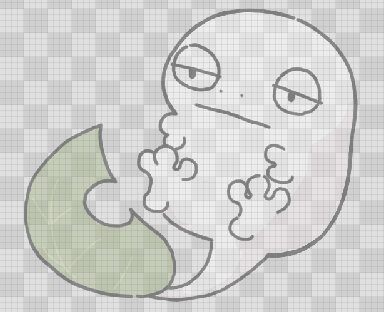
- Adjust its position and size, then draw using it as a reference.
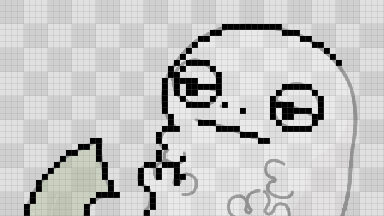
- When you are done, hide the reference layer. (You can also delete it if you no longer need it.)

Note
You can use an image file or a copied image as a reference image.
Reference layer
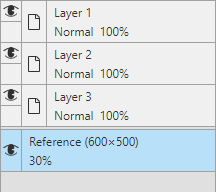
The opened reference image is added as a reference layer at the bottom of the layer list, and its position is fixed.
You can change its opacity in the layer settings, just like a normal layer.
Note
Only one reference image can be shown, so opening another image when a reference layer already exists replaces it.
Moving and transforming
While the reference layer is selected, you can move and transform the reference image by dragging or from the menu.
Dragging
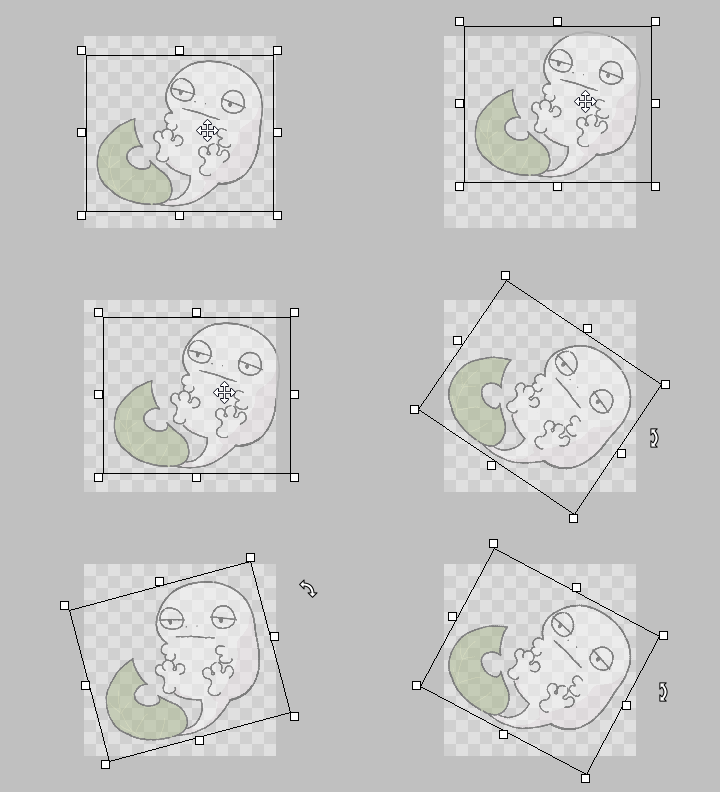
- Inside the frame: Move
- Outside the frame: Rotate
- The 8 handles: Resize
Menu
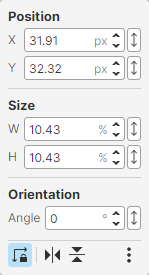
The reference layer menu appears in the upper right of the Canvas Edit panel only while the reference layer is selected.
You can enter values in the menu.
| Item | Description |
|---|---|
 |
|
 |
|
 |
|
 |
|