Editor Settings
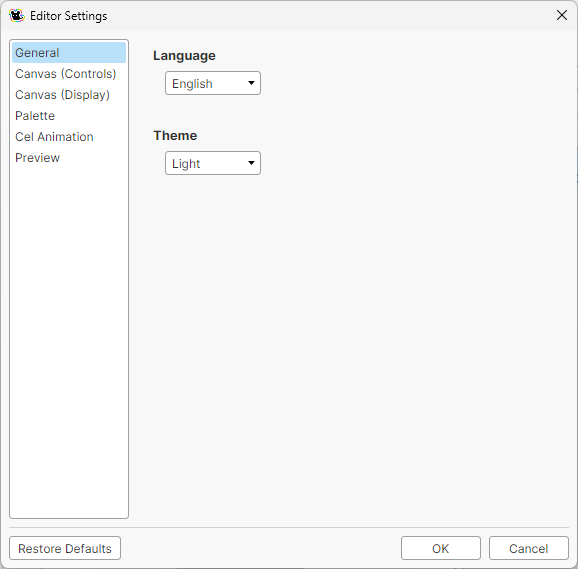
You can change the editor settings from Settings > Editor Settings in the menu bar.
General
- Theme
- Changes the colors of the screen.
- Light
- Dark
- Language
- Changes the display language.
- English
- 日本語
Canvas (Controls)
- Right-click action (Drawing tools)
- Changes what right-click does with the drawing tools.
- Eyedropper (pick color)
- Paint with transparent color
- Paint with sub color
- Link horizontal and vertical scroll bars
- When off, the scroll bars of the Canvas Edit panel move only vertically or only horizontally. When on, you can move freely in any direction, including diagonally.
- Undo: Maximum steps
- The maximum number of times you can undo. Higher values use more memory (RAM and VRAM), so adjust it to suit your PC.
Canvas (Display)
- Transparency checkerboard
- Sets the colors and size of the checkerboard shown in transparent areas of the canvas.
- Grid
- Sets how the grid looks. You can choose the line style (Solid or Dashed) and the color.
- Pixel grid
- Sets whether to show the pixel grid and its color.
Palette
- Color swatch size
- Sets the size and aspect ratio of each color shown in the palette.
Cel animation
- Default cel name
- Sets the name given automatically to a new cel.
- Cel + number
- Number only
- None
- Onion skin opacity
- Sets the opacity of the onion skin.
Preview
- Show brush
- Sets whether to show the brush of the Pencil Tool and other tools in the Preview panel.