Layers panel
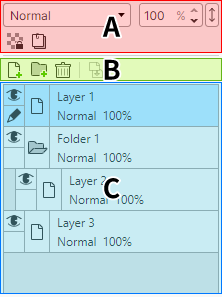
For an explanation of layers themselves, see Using layers.
Layer settings
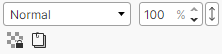
Shows and changes the settings of the current layer.
| Item | Description |
|---|---|
 |
|
 |
|
 |
|
 |
|
Command menu

Commands for working with layers.
| Item | Description |
|---|---|
 |
|
 |
|
 |
|
 |
|
List
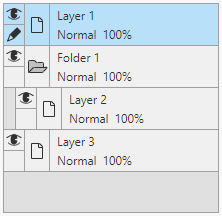
The list of layers on the current canvas.
Note
When cel animation is enabled, only the layers of the current cel are shown.
Context menu
- Rename Layer
- Duplicate Layers
- Merge Down
- Cut
- Copy
- Paste
- Delete
Reading and working with layers
Each layer shows its name and status, and you can work with it by clicking or dragging.
Selecting
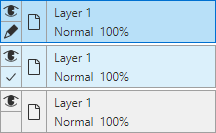
Click a layer to select it.
- The layer with the pencil mark is the current layer.
Canvas operations basically apply to the current layer. - Operations that can apply to multiple layers also apply to layers with a check mark.
To add a check mark:
- Click the box at the lower left (drag to check or uncheck all the layers you pass over)
- Hold Ctrl and click: add to the selection
- Hold Shift and click: select a continuous range
Show / hide
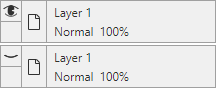
Click the eye icon to show or hide a layer.
Keep dragging to switch all the layers you pass over to the same state.
Layers and folders
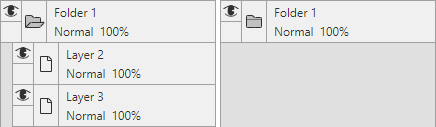
A normal layer has a paper icon to the left of its name, while a folder has a folder icon.
Click it to show or hide the contents of the folder. (This only changes the list; it does not affect the canvas.)
Layer name
Double-click a layer to rename it.
Other status
These can be set in the layer settings.
- Blend mode
- Shown below the layer name.
- Opacity
- Shown below the layer name.
- Clipping
- When on, a downward arrow is shown.

- Lock Transparent Pixels
- When on, an icon is shown at the lower right.

Moving
Drag and drop a layer to move it.