Cel animation
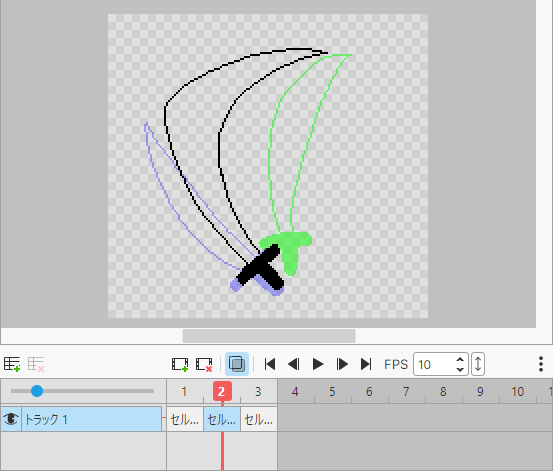
The cel animation feature animates pictures like a flip book.
You can also draw a character animation and a background animation separately and layer them on top of each other.
Basics
The cel animation feature is made up of three elements: cels, tracks, and frames.
- Cel
- The smallest unit of picture that moves in cel animation.
A cel consists of one or more layers.
You can also stretch a cel so that it spans multiple frames.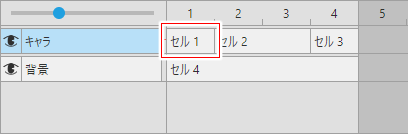
- Frame
- The vertical axis in the figure is a frame. A frame becomes one frame of the animation, and the cels in it are shown stacked.
During playback, frame 1, frame 2, frame 3, and so on are shown at regular intervals.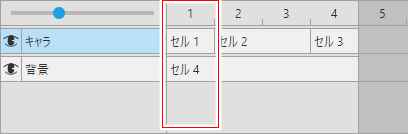
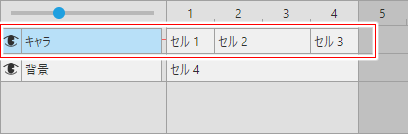
- Track
- The horizontal axis in the figure is a track. A track plays the role of a layer in cel animation.
A track has opacity and blend mode settings, which apply to all the cels in the track. - You can view and change a track's settings by double-clicking it or from its context menu.
Basic workflow
- Choose
Canvas > Enable Cel Animationin the menu bar to enable it. - Once enabled, the Cel Animation panel appears.
- Add cels with
 and draw on them.
 - Play the animation with
 .
.
Onion skin
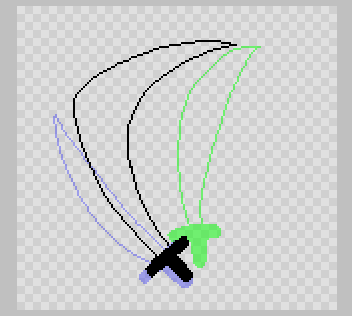
Onion skin lets you see the pictures of the previous and next cels through the current one.
Show or hide it with  in the menu.
Duplicating cels and linked cels
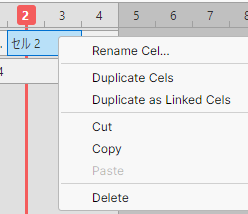
From the menu that appears when you right-click a cel, you can use Duplicate Cels and Duplicate as Linked Cels.
- Duplicate Cels
- Creates a new cel that is an exact copy of the original. The original and the copy are separate cels.
- Duplicate as Linked Cels
- Creates a cel identical to the original. Since the original and the copy are the same, editing one also edits the other.
- Linked cels have a triangle mark in the upper left. It is normally gray, but it is shown in blue on the current cel and the cels linked to it.

Exporting
Currently, animations can only be exported as an image sequence.